


This article will show you how to remove a database in cPanel.
-
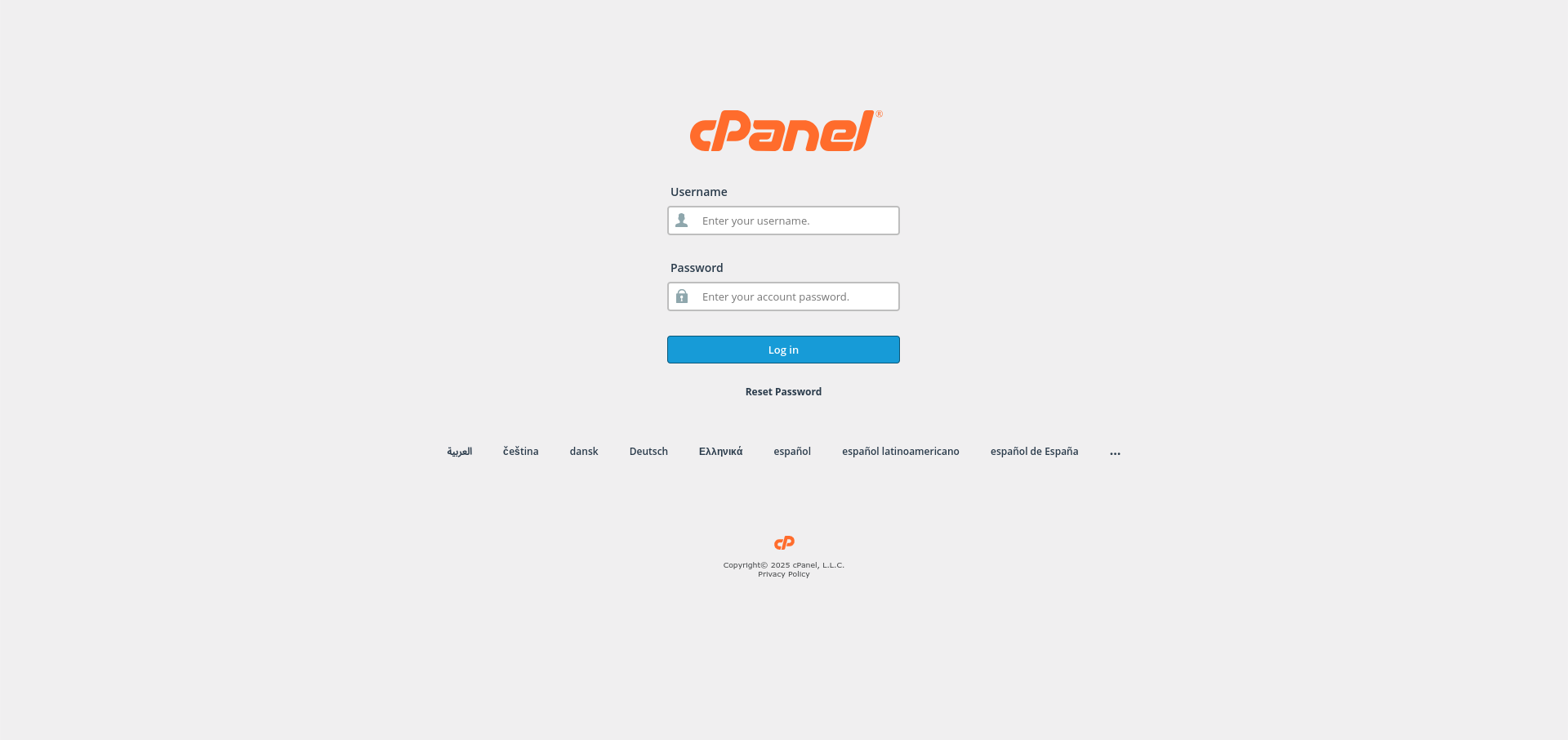
Log in to cPanel:
Use your user details to log in to the cPanel control panel.
-
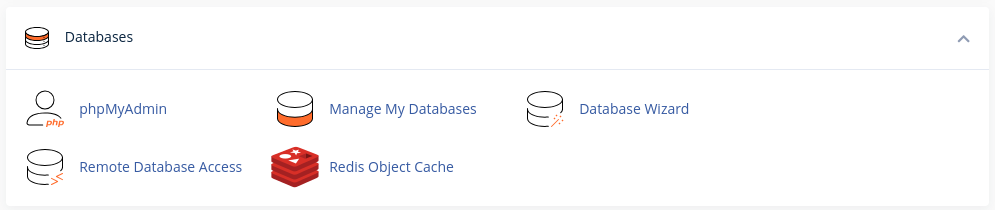
Navigate to the Databases Section:
Scroll down and find the Databases section in cPanel.
-
Access the Databases Page:
Click on the Manage My Databases option under the Databases section.

-
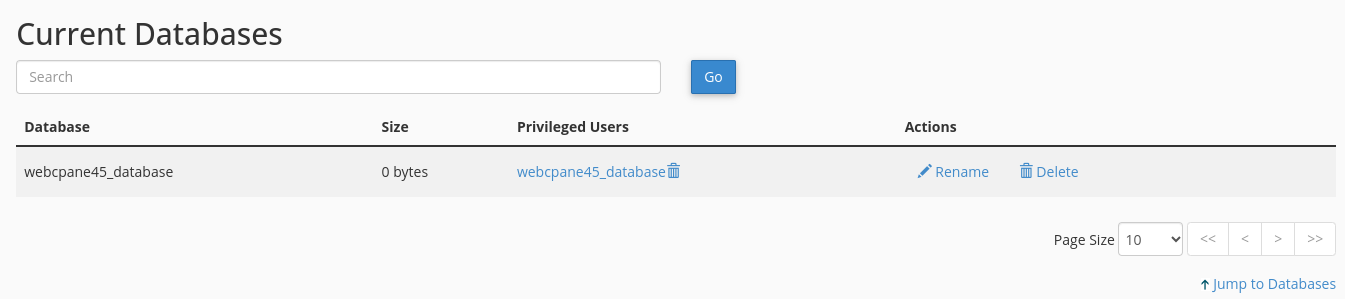
Locate the Database to Remove:
In the Current Databases section, find the database you wish to remove.
-
Delete the Database:
Next to the database name, click the Delete button.

-
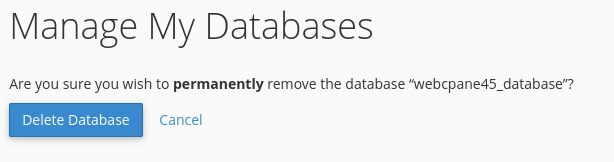
Confirm Deletion:
A confirmation prompt will appear. Click Delete Database to confirm that you want to permanently delete the database.
Congratulations! You’ve successfully removed a database in your cPanel control panel.


