


This article will show you how to view error logs in cPanel.
-
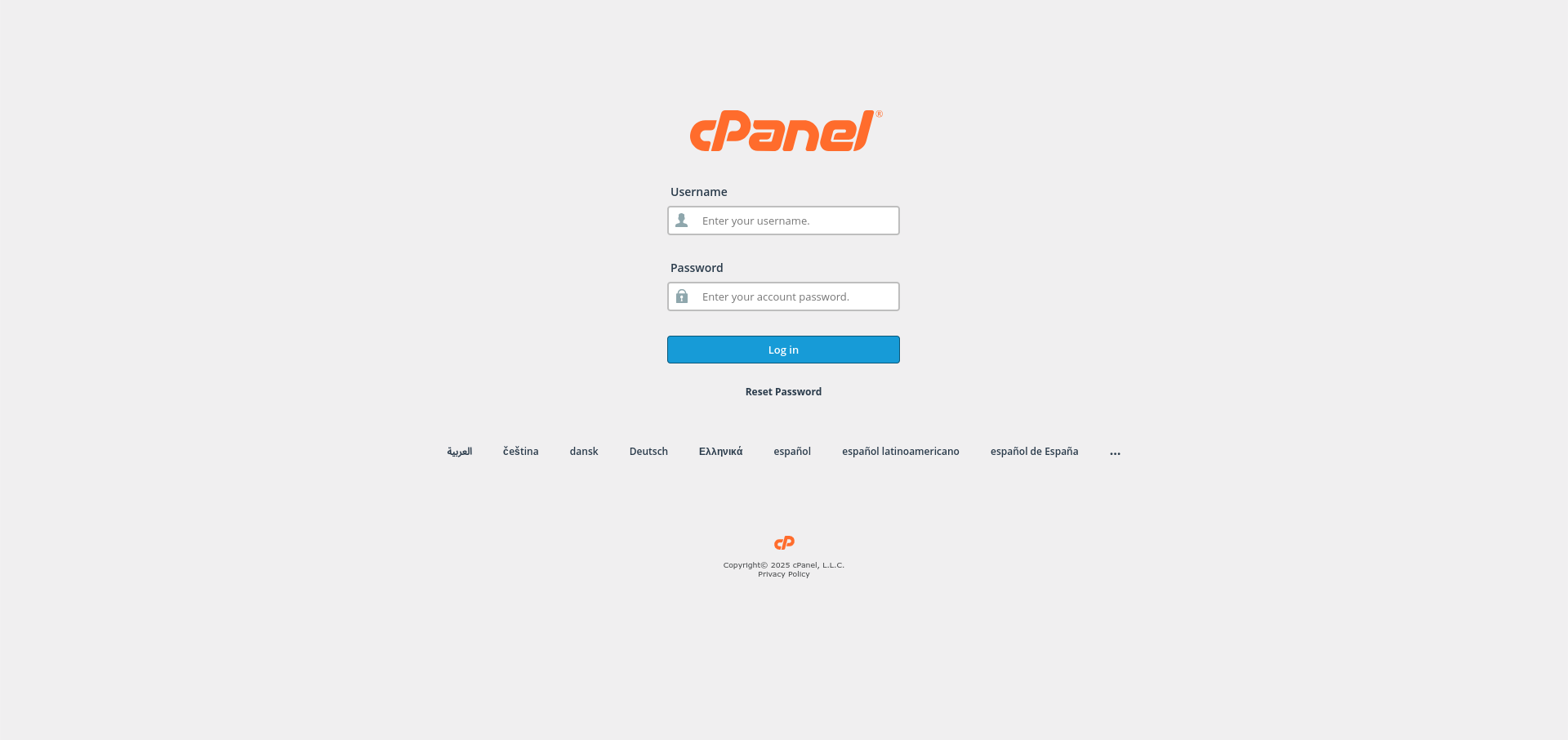
Log in to cPanel:
Use your user details to log in to the cPanel control panel.
-
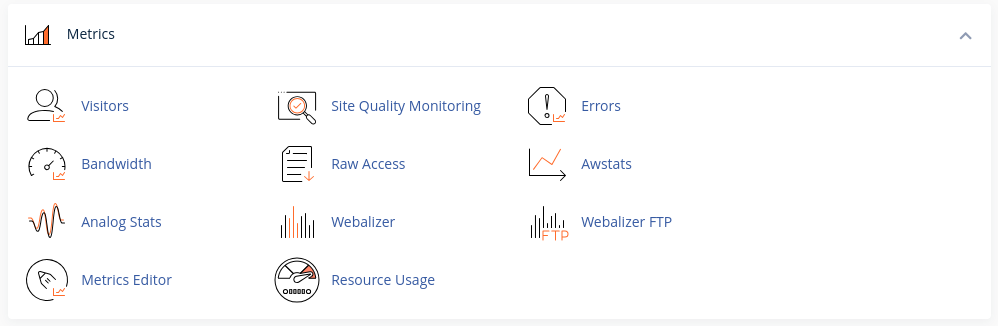
Navigate to the Metrics Section:
Scroll down and locate the Metrics section in cPanel.
-
Access Error Logs:
Click on the Errors option under the Metrics section.
-
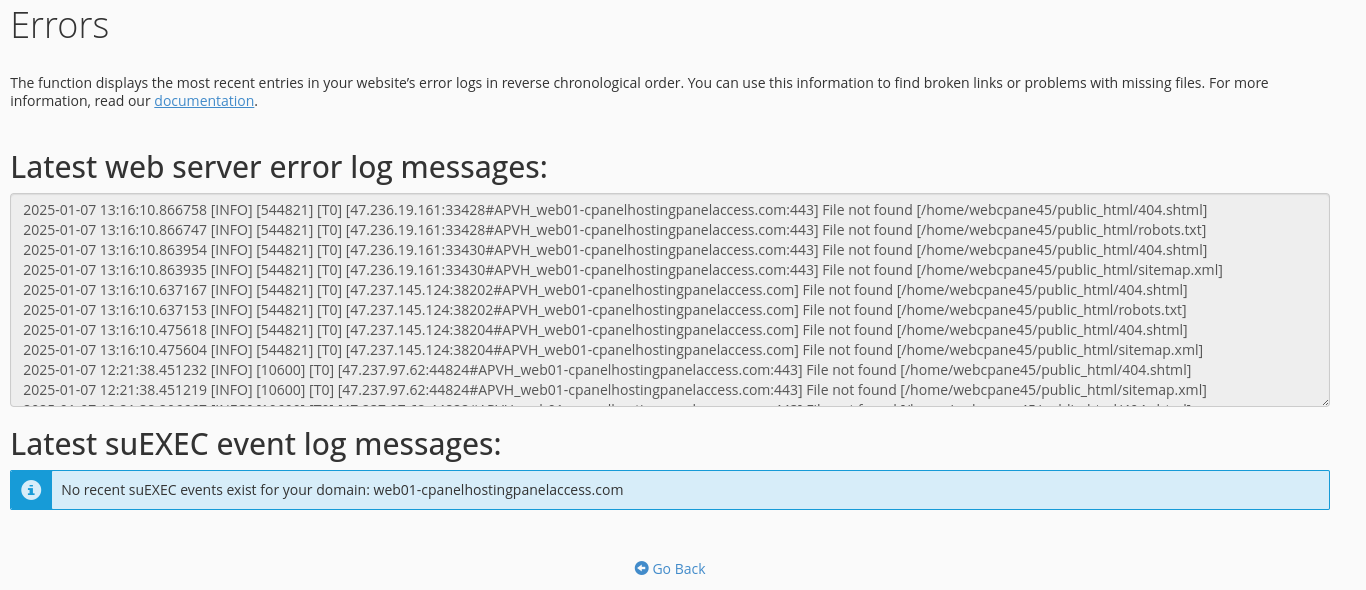
View the Error Logs:
On the Errors page, you will see a list of the most recent errors generated by your website. These logs include details such as:- Date and Time: When the error occurred.
- File Path: The location of the file or resource causing the error.
- Error Details: A description of the error.
-
Use the Logs for Troubleshooting:
- Review the error messages to identify potential issues with your website.
- Note the file paths and error details to make necessary changes or fixes.
Congratulations! You’ve successfully accessed the error logs in your cPanel control panel. These logs are a helpful resource for troubleshooting issues.


