


This article will show you how to create an FTP account in cPanel.
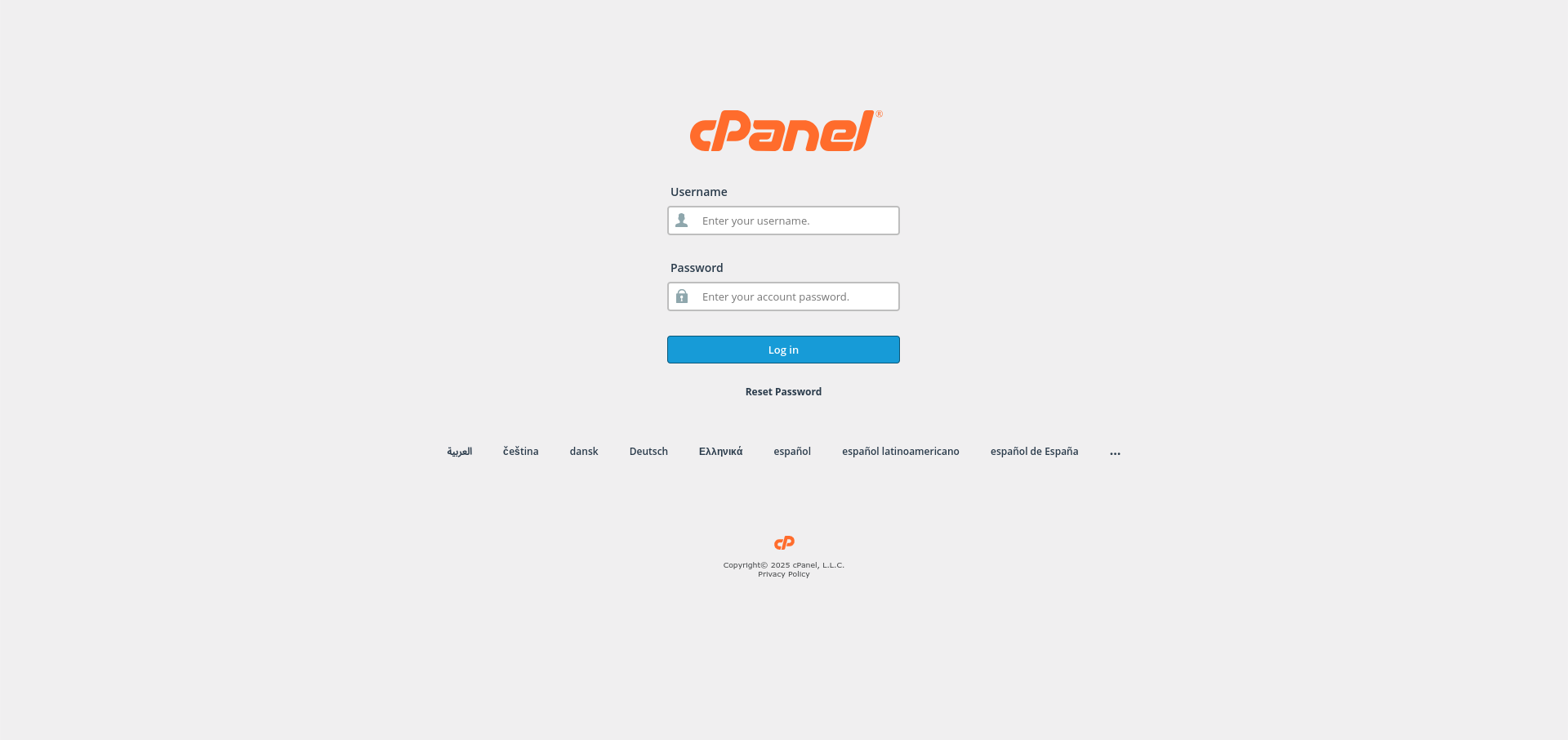
- Log in to cPanel:
Use your user details to log in to the cPanel control panel.
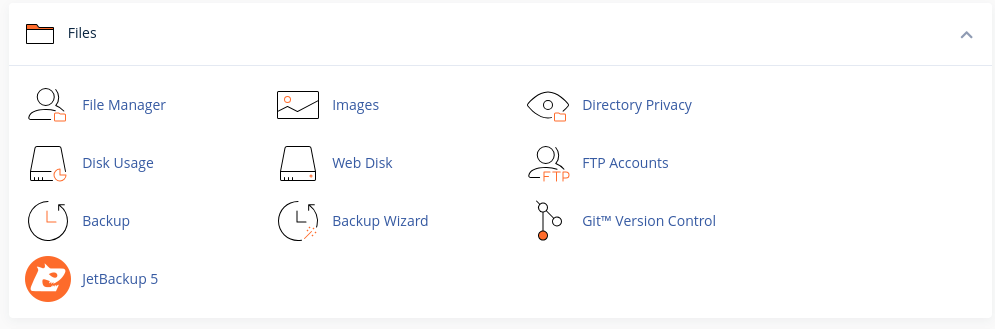
- Navigate to the Files Section:
Scroll down and find the Files section in cPanel.
- Access FTP Accounts:
Click on the FTP Accounts option under the Files section.
- Create a New FTP Account:
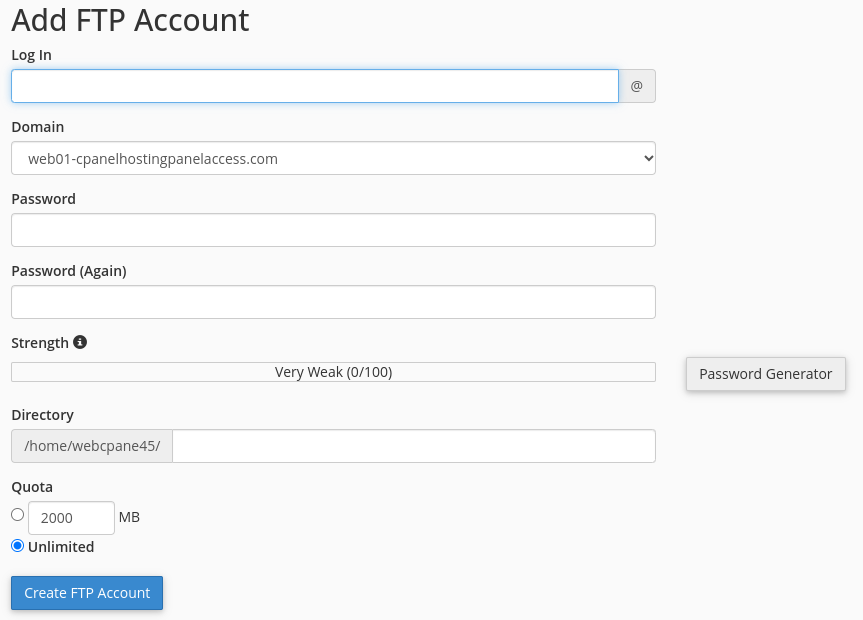
In the FTP Accounts page, under Add FTP Account, do the following:
- Log in: Enter the username for your FTP account (e.g., ftpuser).
- Domain: Select the domain associated with your FTP account from the drop-down.
- Password: Choose a strong password or use the Password Generator to create one.
- Directory: Specify the directory this FTP account will have access to (e.g., public_html for your website files).
- If you want the account to have full access, leave the directory as public_html.
- You can restrict access by specifying a different directory.
- Quota: Set the amount of disk space the FTP account can use, or select Unlimited.
- Create the Account:
Click the Create FTP Account button to finish creating the account.

Congratulations! You’ve successfully created an FTP account in your cPanel control panel.


