


This article will show you how to create an email account in cPanel.
-
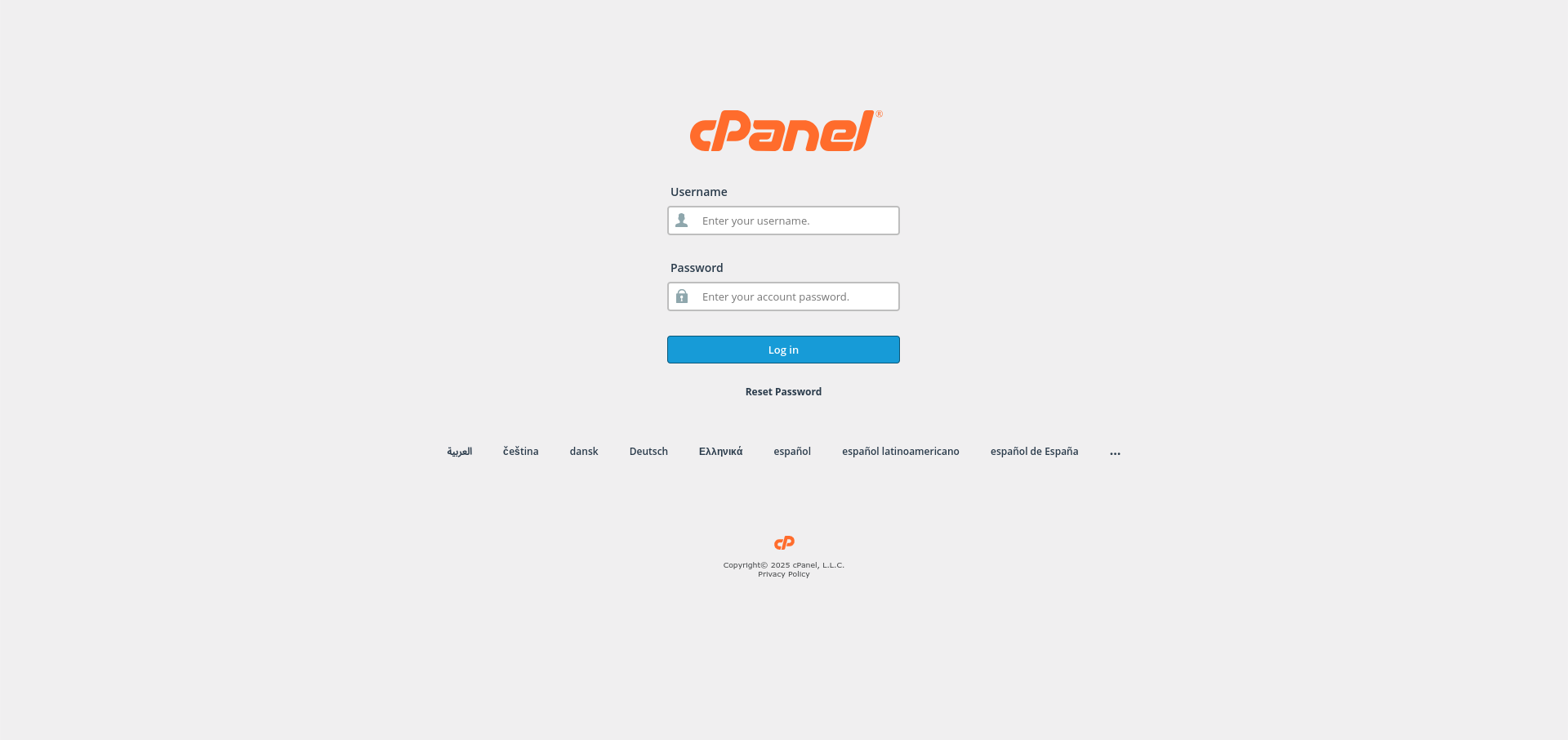
Log in to cPanel:
Use your user details to log in to the cPanel control panel.
-
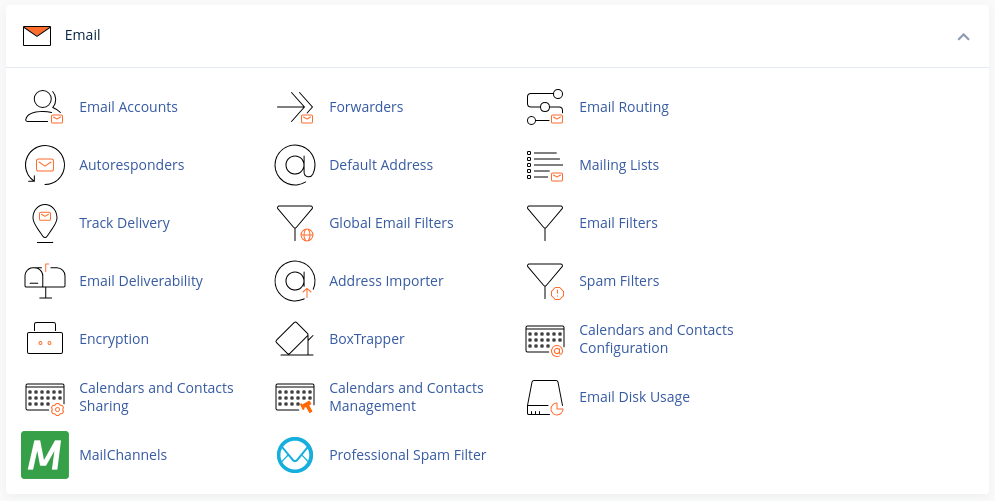
Navigate to the Email Section:
Scroll down and find the Email section in cPanel.
-
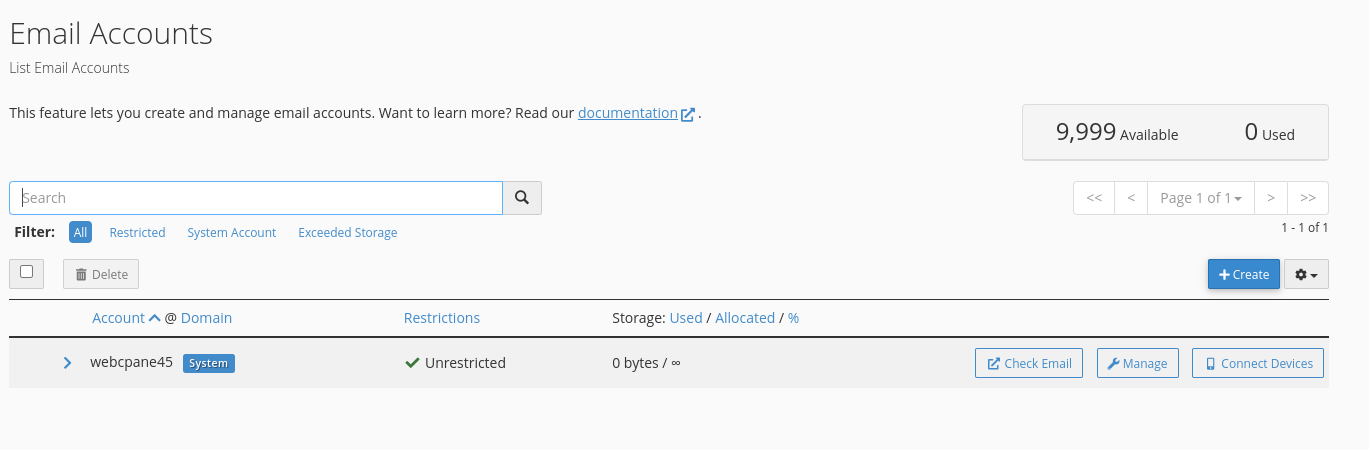
Access the Email Accounts Page:
Click on the Email Accounts option under the Email section.
-
Create a New Email Account:
Click on the "Create" button from the top right of the Email Accounts page.

-
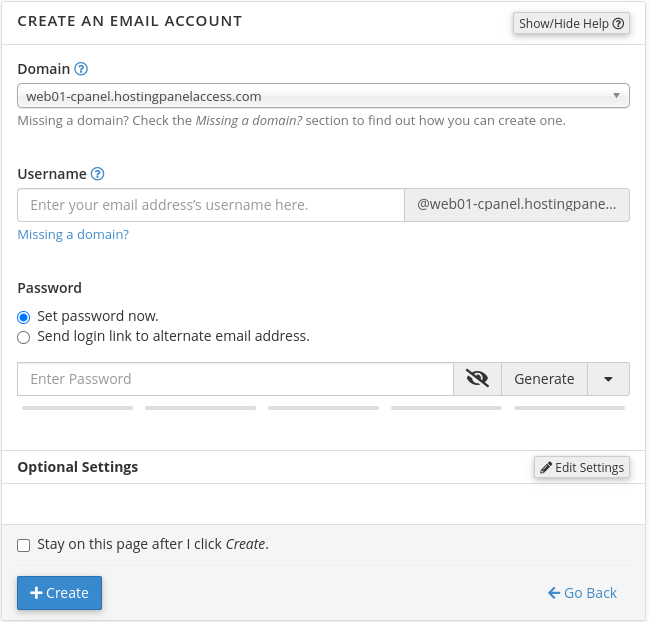
Enter Email Account Details:
In the Create an Email Account page, select the domain, enter the desired username (e.g., [email protected]), and set a password.
-
Set Storage Quota:
You can set a mailbox storage quota for the account or leave it as Unlimited by clicking on Additional Settings. -
Create the Account:
Click the Create button to finish creating the email account.
Congratulations! You’ve successfully created an email account in your cPanel control panel.


