


This article will show you how to add a new domain in DirectAdmin.
- Log in to DirectAdmin:
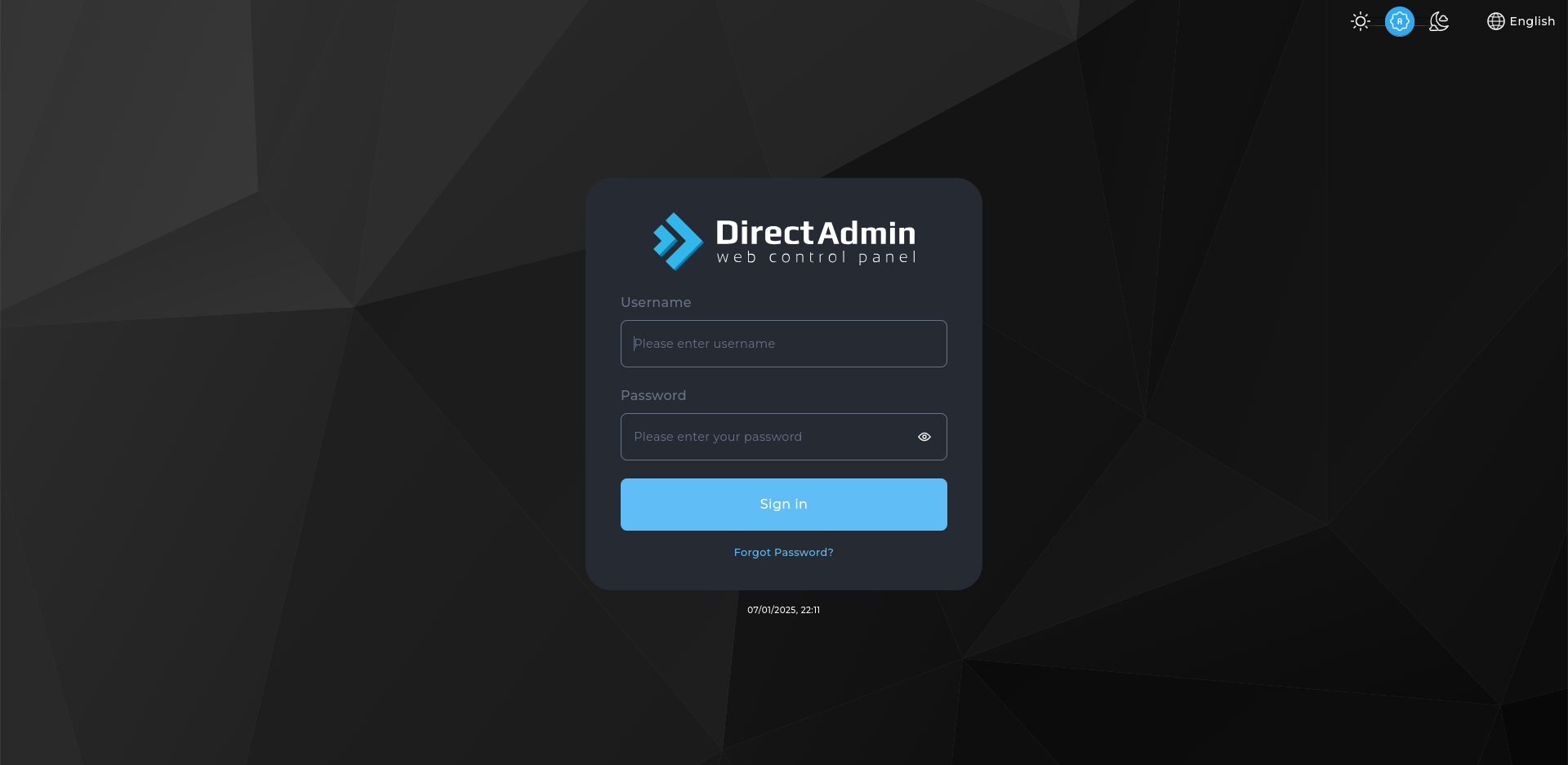
Use your user details to log in to the DirectAdmin control panel.
- Navigate to the Domain Management Section:
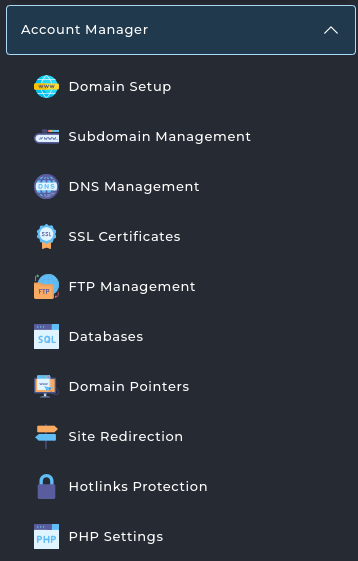
On the homepage, click on Domain Setup under the Account Manager section.
- Add a New Domain:
Click on the Add New button in the top right.

- Enter Domain Details:
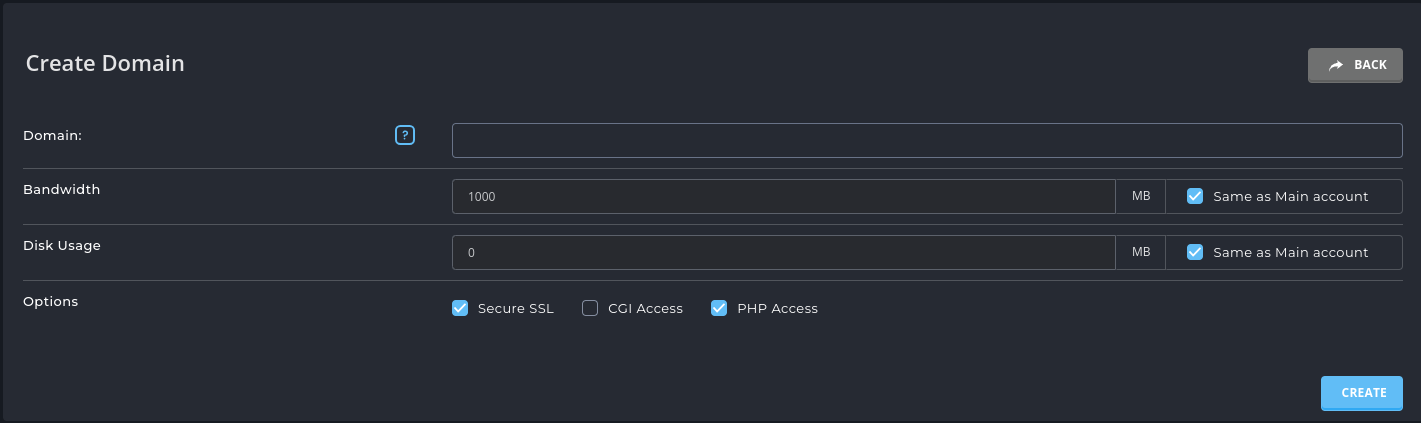
- Domain Name: Enter the domain name you wish to add (e.g., example.com).
- IP Address: Choose the IP address for the domain (if applicable).
- Bandwidth: Set the desired bandwidth limit for the domain.
- Disk Usage: Set the desired disk usage for the domain (storage space).
- Options: Choose additional options such as Secure SSL, CGI Access and PHP Access.
- Create the Domain:
Click the Create button to finish adding your new domain.

Congratulations! You’ve successfully added a new domain to your DirectAdmin account.


