


This article will show you how to create a database in DirectAdmin.
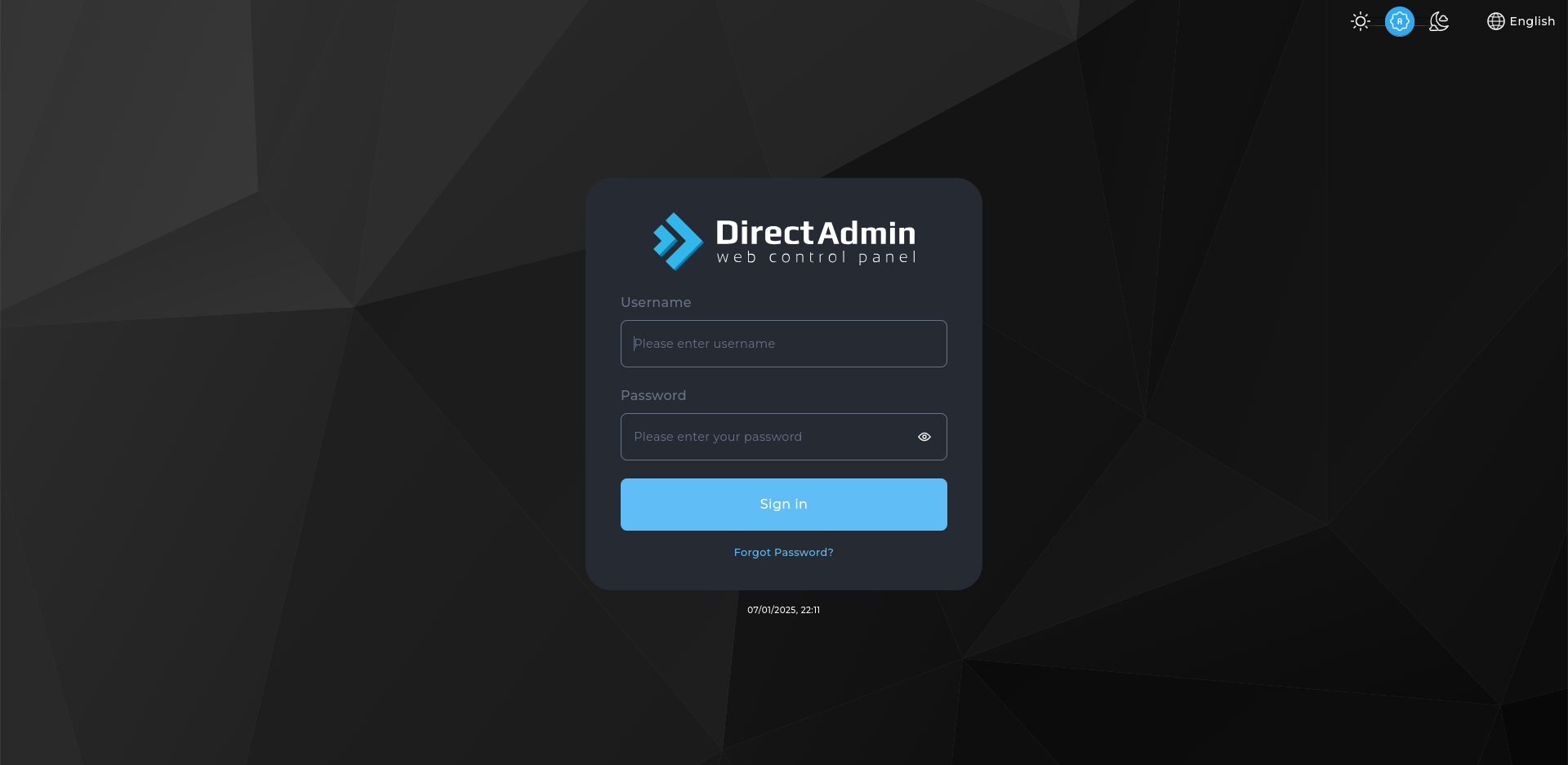
- Log in to DirectAdmin:
Use your user details to log in to the DirectAdmin control panel.
- Navigate to the Databases Section:
Navigate to and click on Databases under the Account Manager section. - Create a New Database:
On the Create Database page, in the Database Name field, enter the desired name for the new database (e.g., my_database). - Create the Database:
Click the Create button to finish creating the database.
Congratulations! You’ve successfully created a database in your DirectAdmin control panel.


