


This article will show you how to create an email account in DirectAdmin.
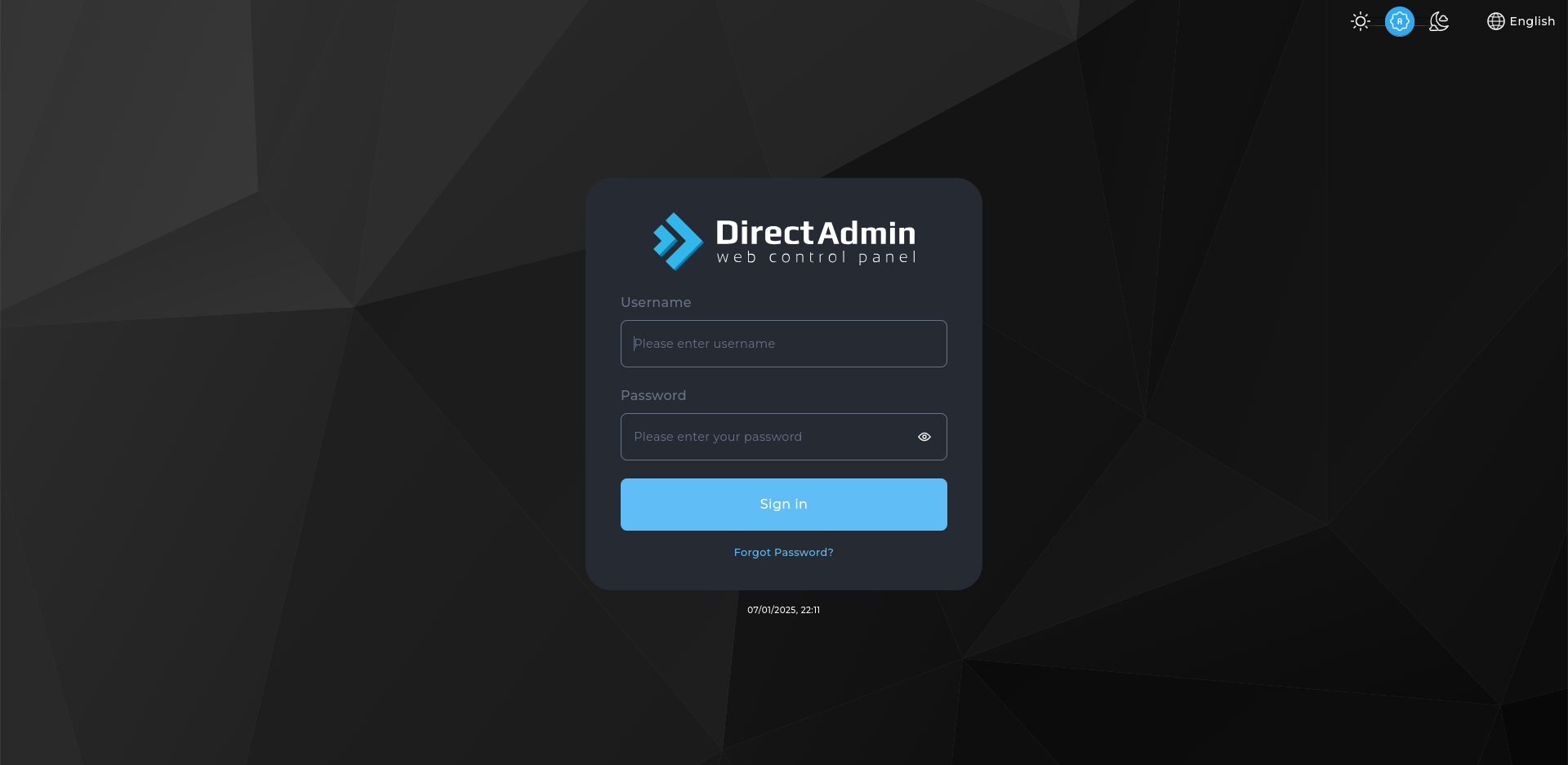
- Log in to DirectAdmin:
Use your user details to log in to the DirectAdmin control panel.
- Navigate to the Email Management Section:
On the homepage, click on Email Accounts under the Email Management section. - Create a New Email Account:
On the Email Accounts page, click the Create Account button. - Enter Email Account Details:
- Email Address: Enter the desired email username (e.g., [email protected]).
- Password: Set a strong password for the email account.
- Quota: Set a mailbox storage quota (e.g., 100MB, Unlimited, etc.).
- Create the Account:
Click the Create Account button to finish creating the email account.
Congratulations! You’ve successfully created an email account in your DirectAdmin control panel.


